Importing Data with FTP
When you import data using FTP, you upload data files to an existing Hive table. This method supports manual file transfers and basic command-based processing.
In addition to FTP-based ingestion, you can now import data using SFTP-based offline ingestion, which provides a more structured, secure, and scalable approach for handling large data uploads. Unlike FTP, SFTP ingestion uses predefined directory structures, metadata-driven processing, and automated workflows for commands such as UPSBATCH, UPSLINK, and HIVEUPLOAD.
SFTP ingestion is recommended for batch processing, automated pipelines, and scenarios requiring better traceability, validation, and error handling. Files are uploaded as compressed archives along with metadata, and are processed asynchronously by the ingestion system.
For more detailed information on directory structure, file formats, metadata configuration, and command usage, refer to SFTP Offline Data Ingestion.
Before You Start
Before you begin, ensure the following prerequisites are met:
-
Your site must be configured to use DSW.
-
Your FTP credentials must be created.
Note: Contact your ADA team if either of these is not configured.
Use the following command to connect to the DSW FTP server:
ftp build-ftp.richrelevance.com 2222Table Requirements
Before uploading data, ensure that the target Hive table meets the following requirements:
-
The table must be external.
-
The table must not be partitioned.
If the table already exists and meets these requirements, you can proceed with data upload. Otherwise, create the table before uploading data.
Custom Commands
Once the table is ready, you can upload data using standard FTP commands. After uploading, use custom commands to process the data and load it into Hive.
There are currently two custom commands:
-
CAT - prints the first lines of a file
-
HIVEUPLOAD - puts the file into a predefined Hive table. It takes two arguments:
-
The file name.
-
The table name (using -table argument).
-
The additional functions are invoked via the site command.
Example Commands
Assume you have a file foo.txt on your local file system. You can upload the file to the FTP server using standard PUT operation like so:
> put foo.txt To print the first lines of the file, do this:
> site cat foo.txt To upload the file to a Hive table foo_table, do this:
> site hiveupload foo.txt -table foo_tableExample - Import Data from FTP to Hive
This example demonstrates how to upload a text file and load it into Hive. It assumes that an FTP account is configured for your site.
In the Query Editor
-
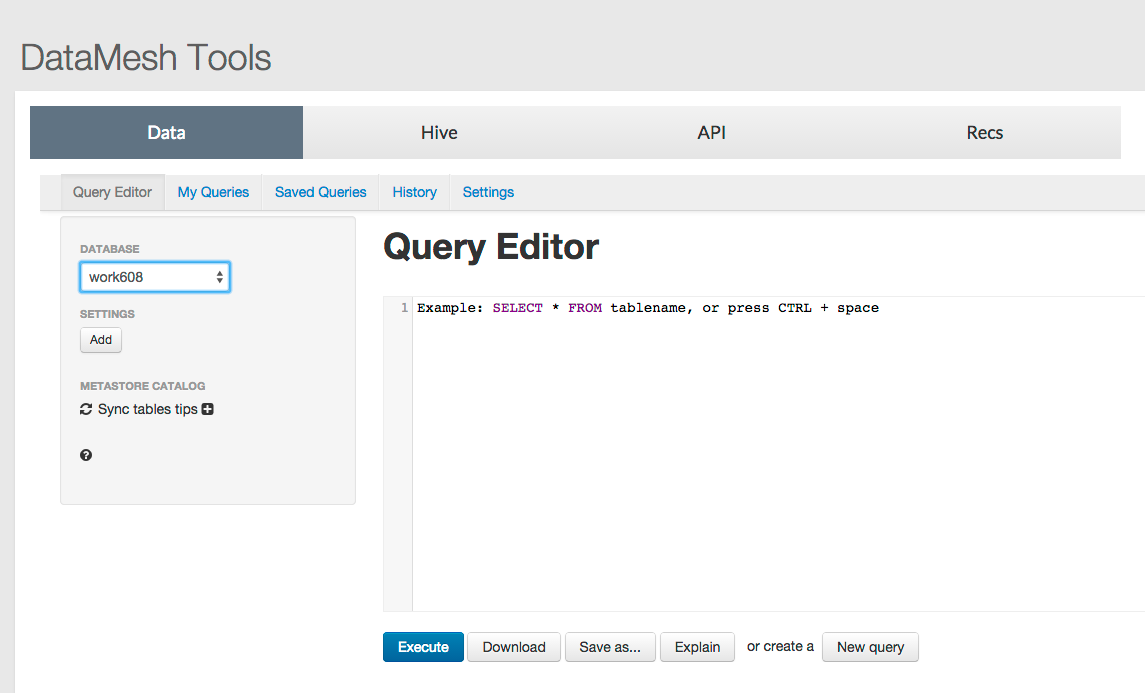
In the Query Editor, on the DataMesh Tools page, select the database you want to use, (for example, work608).
-
Use the query editor on the Data tab to create a table using the following query:
- On your local machine, create a text file named ftptestcsv.txt with data. Ensure the data format matches the table schema. In the table above, we declared two columns separated by a comma, so a file like this would be valid.
- Connect to the FTP server and execute the following commands:
CREATE EXTERNAL TABLE ftp_test ( id bigint, name string)
ROW FORMAT DELIMITED FIELDS TERMINATED BY "," ;
If you prefer to create the table directly in Hive, use:
CREATE EXTERNAL TABLE ftp_test ( id bigint, name string)
ROW FORMAT DELIMITED FIELDS TERMINATED BY ","
STORED AS INPUTFORMAT 'org.apache.hadoop.mapred.TextInputFormat'
OUTPUTFORMAT 'org.apache.hadoop.hive.ql.io.HiveIgnoreKeyTextOutputFormat';1,blah
2,blimp
3,blechftp build-ftp.richrelevance.com 2222
// Log in as user/pwd
put ~/ftptestcsv.txt foo.txt
site hiveupload foo.txt -table ftp_testThis uploads the file and loads it into the specified Hive table.