Catalog Configuration
The Catalog Configuration ensures that product data is structured and optimized for personalization and recommendations.
Perform the following steps to set up the Catalog configuration:
-
On the Personalization Platform dashboard, go to Search | Browse > Search Configuration.
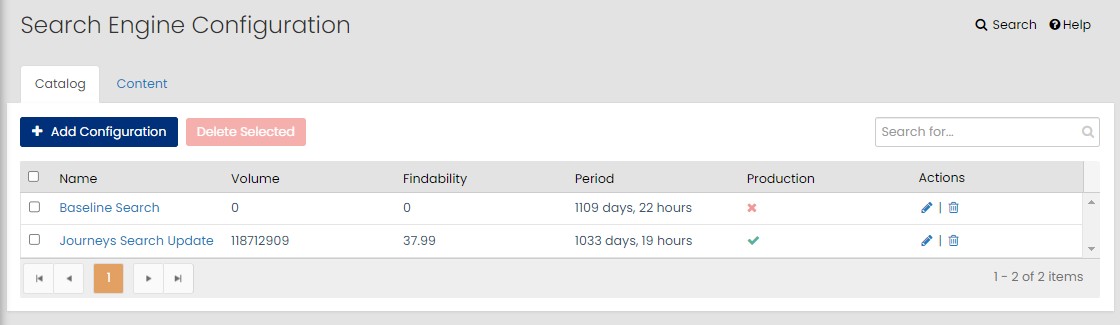
The Search Engine Configuration page is displayed.
-
On the Search Engine Configuration page, click the Catalog tab.
-
Click + Add Configuration.
-
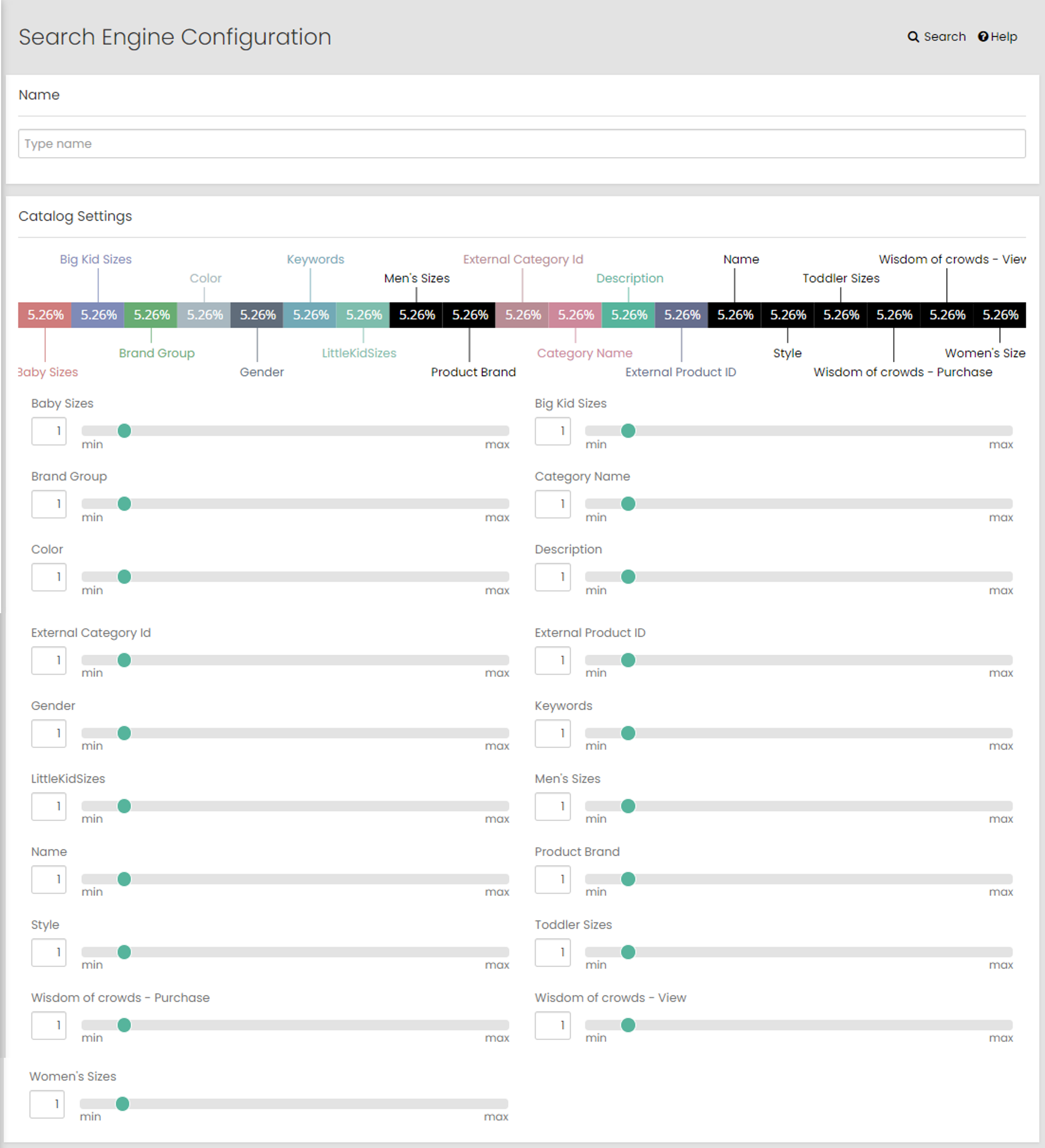
Specify the name of the Catalog.
-
In the Catalog Settings area, set all the attributes to the required value ranges between a minimum value 1 to maximum value 10.
The following attributes are displayed under Catalog Settings:
Note: The attributes displayed here are the ones that have been configured as Searchable on the Search Attributes page (applies to both Feed and Streaming clients).
-
Baby Sizes
-
Big Kid Sizes
-
Brand Group
-
Category Name
-
Color
-
Description
-
External Category Id
-
External Product ID
-
Gender
-
Keywords
-
LittleKidSizes
-
Men's Sizes
-
Name
-
Product Brand
-
Style
-
Toddler Sizes
-
Wisdom of crowds - Purchase
-
Wisdom of crowds - View
-
Women's Sizes
-
-
In the Personalization Settings area, set all the attributes to the required value ranges between a minimum value 1 to maximum value 10. The lower the value, the lesser the influence; the higher the value, the stronger the influence on recommendations.
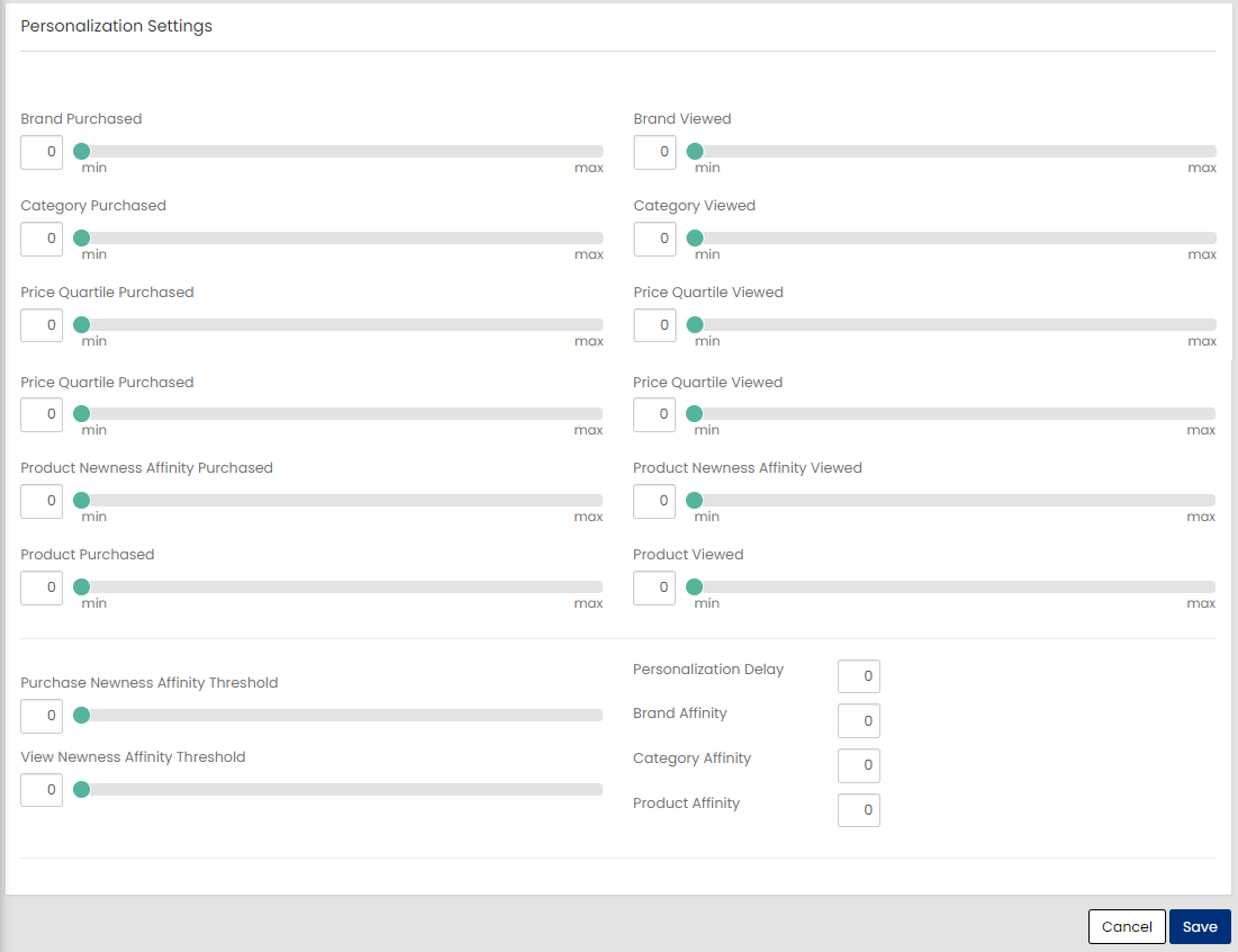
The following attributes are displayed under Personalization Settings. These settings control personalization-based boosting applied during search result ranking, based on a shopper’s past behavior (views and purchases).
-
Brand Purchased: Boosts search results for products from brands the shopper has previously purchased.
-
Brand Viewed: Boosts search results for products from brands the shopper has previously viewed.
-
Category Purchased: Boosts search results for products in categories the shopper has previously purchased from.
-
Category Viewed: Boosts search results for products in categories the shopper has previously viewed.
-
Price Quartile Purchased: Boosts search results for products within the same price quartile as previous purchases.
-
Price Quartile Viewed: Boosts search results for products within the same price quartile as previously viewed items.
-
Product Newness Affinity Purchased: Boosts newer products based on purchase history, increasing preference toward newly launched items.
-
Product Newness Affinity Viewed: Boosts newer products based on view history, increasing preference toward newly launched items.
-
Product Purchased: Boosts search results for products similar to those previously purchased.
-
Product Viewed: Boosts search results for products similar to those recently viewed.
-
Purchase Newness Affinity Threshold: Controls how purchase recency impacts boosting.
-
View Newness Affinity Threshold: Controls how view recency impacts boosting.
-
Personalization Delay: Sets a delay (in seconds) before shopper activity is reflected in boosting.
-
Brand Affinity: Controls how many brands from the shopper’s affinity profile are eligible for boosting in search results. The value entered represents the top N brands returned by the User Profile Service (ranked by affinity strength). Only products from these top N brands can receive boosts from the Brand Purchased and Brand Viewed sliders.
Note: Use a smaller N (for example, 5–20) to focus boosting on the shopper’s strongest brand preferences; use a larger N to broaden coverage across more brands.
-
Category Affinity: Controls how many categories from the shopper’s affinity profile are eligible for boosting in search results. The value entered represents the top N categories returned by the User Profile Service (ranked by affinity strength). Only products belonging to these top N categories can receive boosts from the Category Purchased and Category Viewed sliders.
Note: Use a smaller N (for example, 5–30) for tighter category personalization; use a larger N if shoppers typically browse across many categories.
-
Product Affinity: Controls how many individual products from the shopper’s affinity profile are used to influence boosting in search results. The value entered represents the top N products returned by the User Profile Service (ranked by affinity strength). Only these top N products are used as reference items when applying boosts from the Product Purchased and Product Viewed sliders (for example, boosting products similar to the shopper’s most-affinitized products).
Note: Use a smaller N (for example, 5–50) to focus boosting on the shopper’s strongest product interests. Increase N if you want personalization to consider a wider set of historical product interactions.
-
-
Click Save.
The created configuration is displayed on the Search Engine Configuration page.
You can perform the following actions to manage the Search Configuration for catalog:
- Click
 on the corresponding row to edit the configuration.
 - Click
 on the corresponding row to delete the configuration.
- Click